How to Make Your Own DIY Budget-Friendly Yoto Cards
If you have a Yoto Player, you’ve probably discovered the fun of Make Your Own cards. They’re brilliant for creating personalized playlists, recording family stories, adding your own audio and making all sorts of educational resources for your children.
We have had Yotos for 2 years now and we have found a ton of uses for them! However, I am a frugal mom of 6, and so we have not purchased any real Yoto cards with stories. We have been exclusively using Make Your Own Cards and the app, which we have loaded up with many awesome mp3 files we already legally owned.
However, my darling children like to lose things. And we recently lost a whole collection of cards! I needed a more budget-friendly solution.
This post may contain affiliate links. See my full disclosure here.
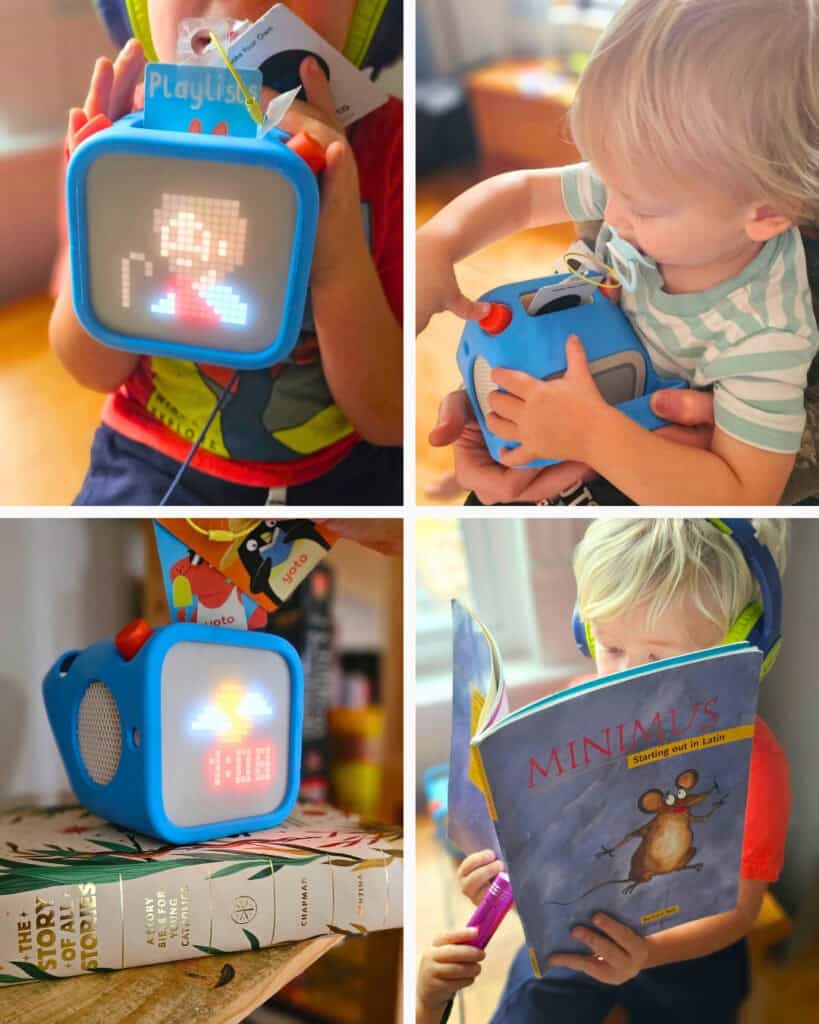
Official Yoto Make Your Own cards were not going to fit the budget.
Enter this little trick worth knowing about: you can use compatible third-party NFC cards as Make Your Own cards for your Yoto Player!
This means you can create a playlist in the Yoto app, link it to an official Make Your Own card, and then copy that card’s NFC information onto a compatible blank NFC card.
The result? Another physical card that can play the same playlist on your Yoto Player.
I’ll walk you through the process below, including the supplies you’ll need and the things to know before you get started.
First, What Are NFC Cards?
NFC stands for Near Field Communication. It’s the technology used in contactless cards and other tap-to-connect devices.
Yoto cards use NFC technology, too. Each card contains a small chip with an identifier that tells your Yoto Player which audio to play.
Here’s the interesting part: the audio itself isn’t stored on the card. The card simply tells the player which content to find in your Yoto account. Think of it like a little bookmark for your audio!
This is why copying the NFC information from a Make Your Own card onto another compatible NFC card can work. The new card acts as another key to the same playlist.
What You’ll Need
Before you begin, you’ll need:
- A Yoto Player or Yoto Mini. Every Yoto comes with one Make Your Own Card to start.
- Your Yoto app and account
- At least one official Make Your Own card (like the one that came with your Yoto!)
- Compatible blank NFC cards
- A smartphone with NFC reading capabilities
- NFC Tools Pro, a $3 app that allows you to read and copy NFC tags. It is available on apple and android.
A note about compatibility: Not every NFC card will work with Yoto. You’ll need a compatible card type. Check the specifications of the cards you’re purchasing.
Step 1: Create Your Make Your Own Playlist
First, create the playlist you want to use in the Yoto app.
You can add your own audio recordings, MP3 files, stories, music and other content that you’re permitted to use.
If you need inspiration, have a look at my guide to 25 Brilliant Ways to Use Yoto Make Your Own Cards for Homeschooling.
Once your playlist is ready, link it to an official Make Your Own card using the usual Yoto process.
Step 2: Let Your Yoto Player Download the Audio
This is an important step!
Before copying the card, make sure your Yoto Player has downloaded the playlist’s audio.
The NFC card doesn’t store the audio itself, so your player needs to be able to access the content associated with that card.
Connect your player to Wi-Fi, insert the Make Your Own card and allow the audio to download fully.
I HIGHLY recommend checking that the download has finished before moving on to the next step.
Step 3: Prepare Your Blank NFC Card
Now it’s time to prepare your blank NFC card using your phone and NFC app. This is where you’ll prepare the compatible blank card and copy the NFC information from your official Make Your Own card.
There are many steps here and it is wise to batch this part!
Before you begin:
Download the app NFC Tools Pro. It is about $3. You will also need the Yoto App, a Yoto player (to test the card), a Make Your Own Yoto Card, and a blank NFC card (or the whole stack).
- Open the app NFC Tools Pro. Along the top it says Read – Write – Other. Go to OTHER > Advanced NFC Commands. You will be prompted with a disclaimer. Click “I Understand.”
- In the Data field, enter the Advanced NFC command:
:A2:03:E1:10:06:00,A2:04:03:04:D8:00,A2:05:00:00:FE:00 - Place your Compatible NFC Card to the back of your phone and hit Send Command. Repeat this for all cards.
- Go back to OTHER and Format the Memory of each card in the same way.
- Grab your real MYO Yoto Card that you loaded up with a book or playlist in Step 1.
- Go to WRITE > Import Records From A Tag. Pop your MYO Card onto the back of your phone to copy it.
- Pop your NFC card onto the back of the phone and hit WRITE.
Step 4: Test Your New DIY Yoto Card!
Once you’ve copied the information, pop your new NFC card into your Yoto Player.
If everything has worked correctly, your player should recognize the card and begin playing the same playlist as your original Make Your Own card.
It’s worth testing each new card before making a whole batch!
Step 5: Label Your New Yoto Card!
Since the NFC to MYO card process is a little less streamlined, you’ll likely not be switching out the audio on these cards as often.
If you have a printer, you can make really pro-looking permanent labels for your cards with these glossy sticker labels. Otherwise, using an ordinary 2×3 paper label and letting your kids decorate would be so cute too!
Follow My Video With Screen Recording for the Visual Learners:
Can I Make Multiple Copies of the Same Yoto Card?
Yes! That’s one of the really handy things about this method.
Once you’ve created a playlist and linked it to an official Make Your Own card, you can use that card as the original for making additional compatible NFC cards.
For example, you could create several copies of a morning basket playlist, a collection of favourite stories or a set of homeschool memory work recordings.
You can also create different playlists and use your official Make Your Own card to link each one before making another copy.
What Can I Use NFC Yoto Cards For?
The possibilities are pretty much the same as regular Make Your Own cards!
Here are a few ideas:
- Homeschool morning basket: Gather poetry, Scripture, hymns, memory work and educational recordings.
- Family audiobooks: Create collections of stories for individual children.
- Language learning: Make cards with vocabulary, pronunciation practice and simple conversations.
- Memory work: Record multiplication facts, catechism questions, prayers or poems.
- Bedtime listening: Make collections of gentle stories and calming music.
- Nature study: Add bird calls, nature recordings and educational audio.
- Family recordings: Let grandparents record stories, messages or favourite family memories.
If you’re looking for more inspiration, see my post on 10 Yoto Hacks You Really Need to Know.
A Few Things to Keep in Mind
There are a few things worth remembering when using third-party NFC cards.
You need compatible NFC cards. Not every blank NFC card has the right specifications to work with Yoto.
The audio isn’t stored on the NFC card. Your Yoto account holds the playlist information, and your player needs to download or stream the associated audio.
The copied card points to the same playlist. If you change the playlist associated with the original card, the copied cards will still point to that same content.
Test before making a big batch. Try one card first to make sure your phone, NFC app and blank card are all compatible.
Respect copyright. As with official Make Your Own cards, only use audio you’ve created yourself or have permission to use. Yoto’s Make Your Own guidelines explain this in more detail.
Is Using NFC Cards an Alternative to Official Yoto Make Your Own Cards?
It can be a useful alternative for families who want to make additional physical cards, but there are a few differences.
Official Yoto Make Your Own cards are designed to work with the Yoto system and can be linked directly through the app. Third-party NFC cards require an additional copying process and compatible hardware.
If you’re just getting started with Make Your Own cards, I’d recommend learning the official process first. Once you’ve got that figured out, experimenting with compatible NFC cards can be a fun way to expand your collection.
Happy listening!
Check out more of my posts that help you make your Yoto player work for your family.


