How to Add a Podcast to Your Yoto Player (Step-by-Step Guide)
I recently realized I know a whole bunch of Yoto hacks that others need to know about! Here is one: Did you know you can add almost any podcast to your Yoto Player, even if it isn’t already available in the Yoto app?
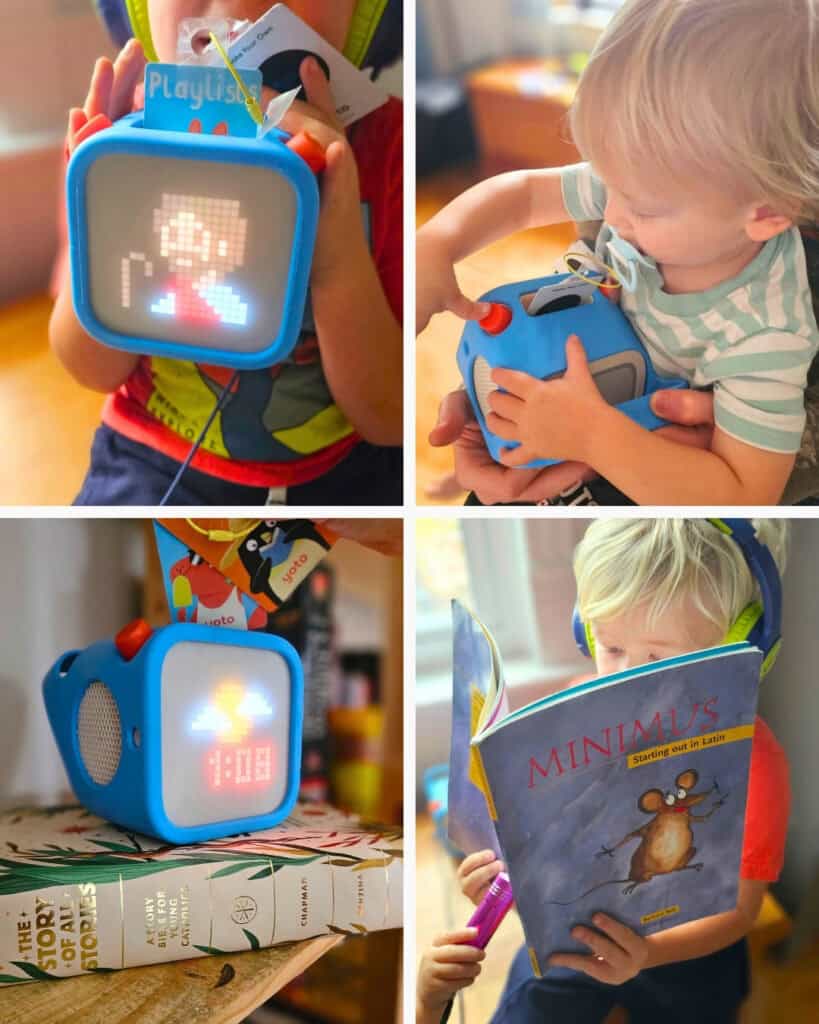
There’s a clever little feature that lets you add a podcast using its RSS feed and link it to a Yoto Make Your Own card. This is a wonderful way to expand your children’s listening library without purchasing additional audio cards.
We love using this feature to have a kid-safe way to stay up-to-date on their favourite podcasts.
Here’s exactly how to do it!
What Is an RSS Feed?
An RSS feed is simply a link that allows podcast apps and other services to access a podcast’s episodes.
It’s different from the regular website address or podcast page. You’ll need the actual RSS feed URL to add a podcast to Yoto.
Step 1: Find the Podcast’s RSS Feed
First, find the RSS feed for the podcast you want to add.
The easiest way is to search Google for:
[Podcast Name] RSS feed
Many podcast websites also have an RSS icon or a link labelled RSS.
Copy the actual RSS feed address. It often contains the word RSS in the URL.
A regular link to a podcast’s website won’t work. You need the feed address itself.
Step 2: Visit Yoto’s Make Your Own Website
Head to:
Log in using the same email address associated with your Yoto app.
At the top of the page, select Podcasts.
Then choose Add Podcast.
Step 3: Paste Your RSS Feed
You’ll see a space to enter your podcast’s RSS feed URL.
- Paste your copied RSS feed into the box.
- Choose an icon for your podcast (you can also upload your own).
- Click Grab podcast details.
Yoto will retrieve the podcast information and display its name and available episodes.
Check that you’ve got the correct podcast, then click Save.
That’s it! Your podcast has now been added to your Yoto library.
Step 4: Link the Podcast to a Make Your Own Card
Now for the fun part!
Open your Yoto app and go to Library.
Find the Make Your Own section and look for the podcast you just added.
- Tap the podcast to open its details.
- Tap the three dots in the top corner.
- Select Link to a Card.
- Insert a blank Make Your Own card into your Yoto Player.
- Follow the instructions in the app and confirm the link.
Your player should display a red recording symbol followed by a green tick when the card has linked successfully.
Remove the card and pop it back in to start listening!
Can I Get New Podcast Episodes Automatically?
Yes! That’s one of the best things about using an RSS feed.
Unlike a playlist made from individual uploaded MP3 files, an RSS podcast can update as new episodes are published.
You don’t have to create a new card every time there’s a new episode.
One thing to remember: RSS podcasts require an internet connection to stream. If you want to listen without Wi-Fi, you’ll need to download individual episodes and add those audio files to a Make Your Own playlist instead.
A Few Things to Try
This is such a handy way to add more variety to your children’s Yoto library.
You could create cards for:
- Children’s history podcasts
- Science and nature podcasts
- Bible stories and Catholic podcasts
- Favourite storytelling podcasts
- Educational podcasts for homeschool
- Children’s music and poetry
Just remember to preview podcasts and check that the content is appropriate for your family before adding them to your children’s library.
Happy listening!